Installation guide · Updated September 2026
IPTV Service Dubai: Installation and Troubleshooting Guide
A reliable IPTV service in Dubai depends on more than an app. The television, authorised provider account, router, Wi-Fi coverage, cabling and device settings must work together. This guide explains the installation process and the checks that can solve common playback problems.
Please note: Dubai Live TV offers TV installation and authorised-app setup assistance only. We do not sell channels, subscriptions or access credentials.
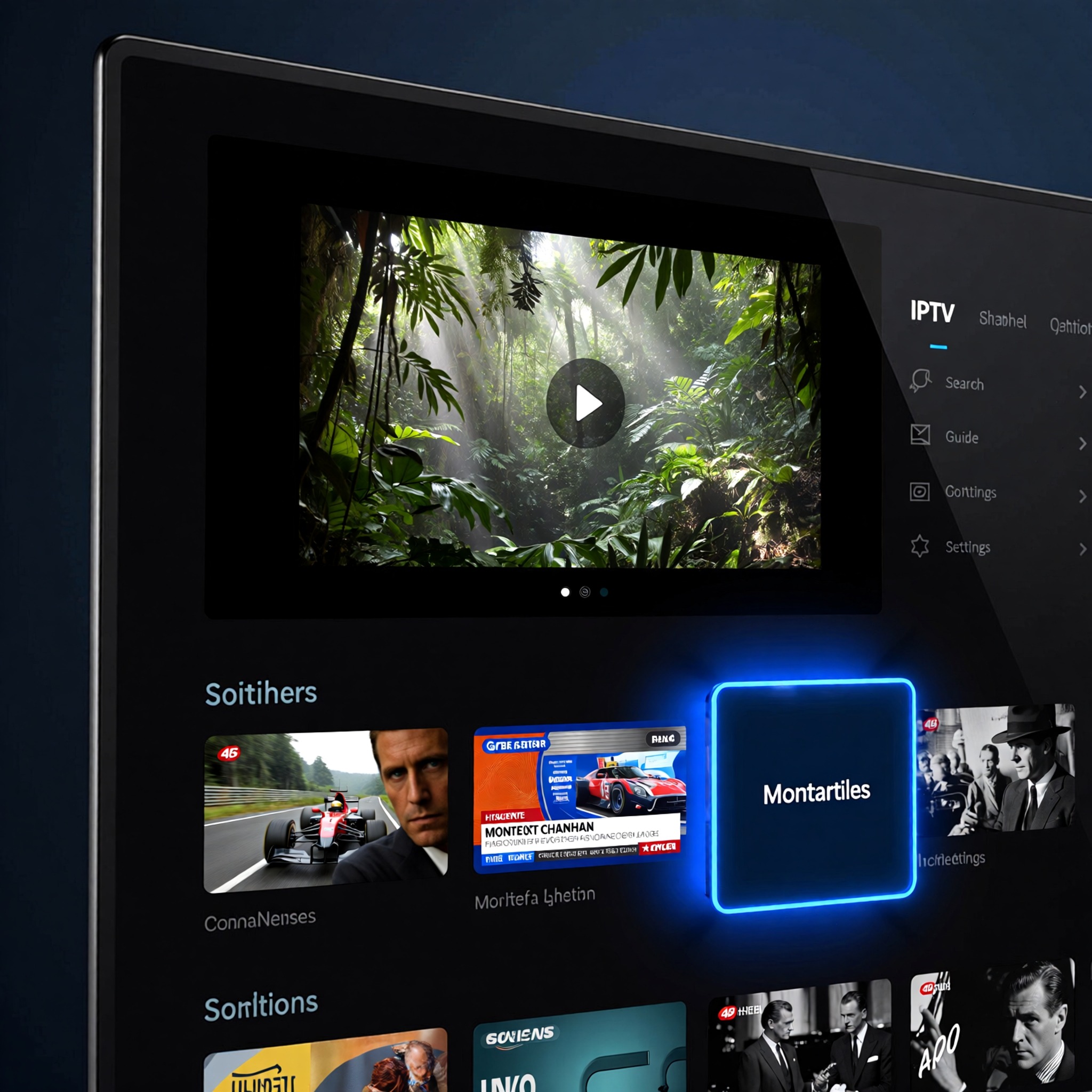
What can an IPTV installation service include?
For an authorised service, a television installer can prepare the physical and in-home technology while the content provider manages the subscription and platform. The installer’s work may include positioning the TV, connecting HDMI and Ethernet cables, joining Wi-Fi, updating firmware, installing a verified app and helping the customer sign in with an existing account.
- Smart TV placement, power and HDMI connection
- Ethernet or Wi-Fi connection and basic signal checks
- Television firmware and official app-store updates
- Installation of compatible, authorised streaming apps
- Login assistance using the customer’s own credentials
- Picture, sound, subtitle and remote-control checks
- Basic parental-control and accessibility setup
- Cable tidying and receiver placement
Subscription billing, channel availability and provider-side outages must be handled by the authorised content provider. If you have not yet selected a provider, use our IPTV package comparison checklist before activating an account.
A practical IPTV installation process
1. Identify the equipment
Record the television brand and model, router location, available HDMI inputs and whether an approved receiver is required. Confirm that the official provider app supports the device.
2. Test the connection at the TV
A speed test next to the television is more useful than a test beside the router. Check both speed and stability during the hours when the service will be used most.
3. Choose Ethernet or Wi-Fi
Ethernet is usually the most predictable connection. If a cable is impractical, use strong 5 GHz or modern mesh Wi-Fi where supported. Do not place the router behind the television, inside a metal cabinet or close to equipment that creates interference.
4. Update and secure the device
Install manufacturer updates, remove unused unknown apps and use a secure home Wi-Fi password. Download the provider app from the official device store.
5. Sign in and test
Use account details supplied directly by the legitimate provider. Test several authorised streams, the programme guide, audio, subtitles and parental controls. Save the provider support details separately from the TV installer’s contact.
IPTV buffering and playback troubleshooting
Buffering can come from the provider, the wider internet connection, home Wi-Fi or the device. Work through one change at a time so you can identify the cause.
| Symptom | First checks | Who may need to help |
|---|---|---|
| All streaming apps buffer | Restart router, test speed, try Ethernet | Internet provider or installer |
| Only one provider app buffers | Check provider status, sign out/in, update app | Subscription provider |
| App will not install | Check TV model, storage, firmware and store region | Installer or device manufacturer |
| Picture but no sound | Check mute, audio track, HDMI and sound output | Installer |
| Login is rejected | Reset through the official provider and check plan status | Subscription provider |
| Remote does not respond | Replace batteries, pair again, restart device | Installer or manufacturer |
Quick sequence for a frozen app
- Close and reopen the app.
- Restart the television or receiver.
- Restart the router and wait for the connection to return fully.
- Check for app and device updates.
- Test another authorised streaming app.
- Try Ethernet or move closer to the router.
- Contact the provider if only its service remains affected.
IPTV setup for Dubai apartments, villas and multiple rooms
A single television may work well on Wi-Fi, while a villa or hotel-style layout usually needs more planning. Each room adds demand to the router, cabling and provider account. Confirm how many simultaneous streams the authorised subscription permits before installing devices in several rooms.
Apartment setup
Check router placement, wall construction and the distance to the television. Ethernet or a short, well-positioned mesh link can improve stability where concrete walls weaken Wi-Fi.
Villa setup
Plan wired access points or a properly placed mesh system. Label Ethernet and HDMI runs, avoid loose power extensions and allow ventilation around receivers.
Hotels and guest rooms
Commercial installations need authorised commercial content rights, central network planning, consistent television settings, secure account management and a support process for guests. Residential subscriptions should not be assumed to cover commercial use.
For larger properties, explore our hotel and villa TV system installation service.
When a new streaming device may help
An external device may be appropriate when the television no longer receives updates, lacks the provider’s official app or performs slowly. Choose a certified device supported by the provider. Avoid generic boxes that arrive with unclear accounts, preloaded unauthorised channels or disabled security settings.
Before buying hardware, check the provider’s supported-device list. Our IPTV subscription compatibility guide explains the main device checks.
IPTV service questions in Dubai
Can Dubai Live TV install my authorised provider app?
Yes, if the app is legitimate and supported by your television or approved streaming device. You must provide and control your own active account.
Do you provide IPTV channels or login details?
No. Dubai Live TV provides installation and setup assistance only. The authorised subscription provider supplies and supports the account and content.
Can an installer guarantee zero buffering?
No. An installer can improve the in-home network and device setup, but cannot control provider outages, wider internet faults or congestion outside the property.
What information should I send before an appointment?
Share the television brand and model, your Dubai area, router location, wall type if mounting is needed, and the name of the authorised app you already use.