How to Set Up IPTV on a Smart TV in Dubai
Setting up IPTV on a Smart TV in Dubai is usually straightforward when you already have an active account from an authorised provider and a compatible television. The important part is not just installing an app: your TV software, home network, device region, login method and app compatibility all need to line up.
Dubai Live TV provides television installation and authorised-app setup assistance. We do not supply channel packages, subscription credentials or unlicensed content.
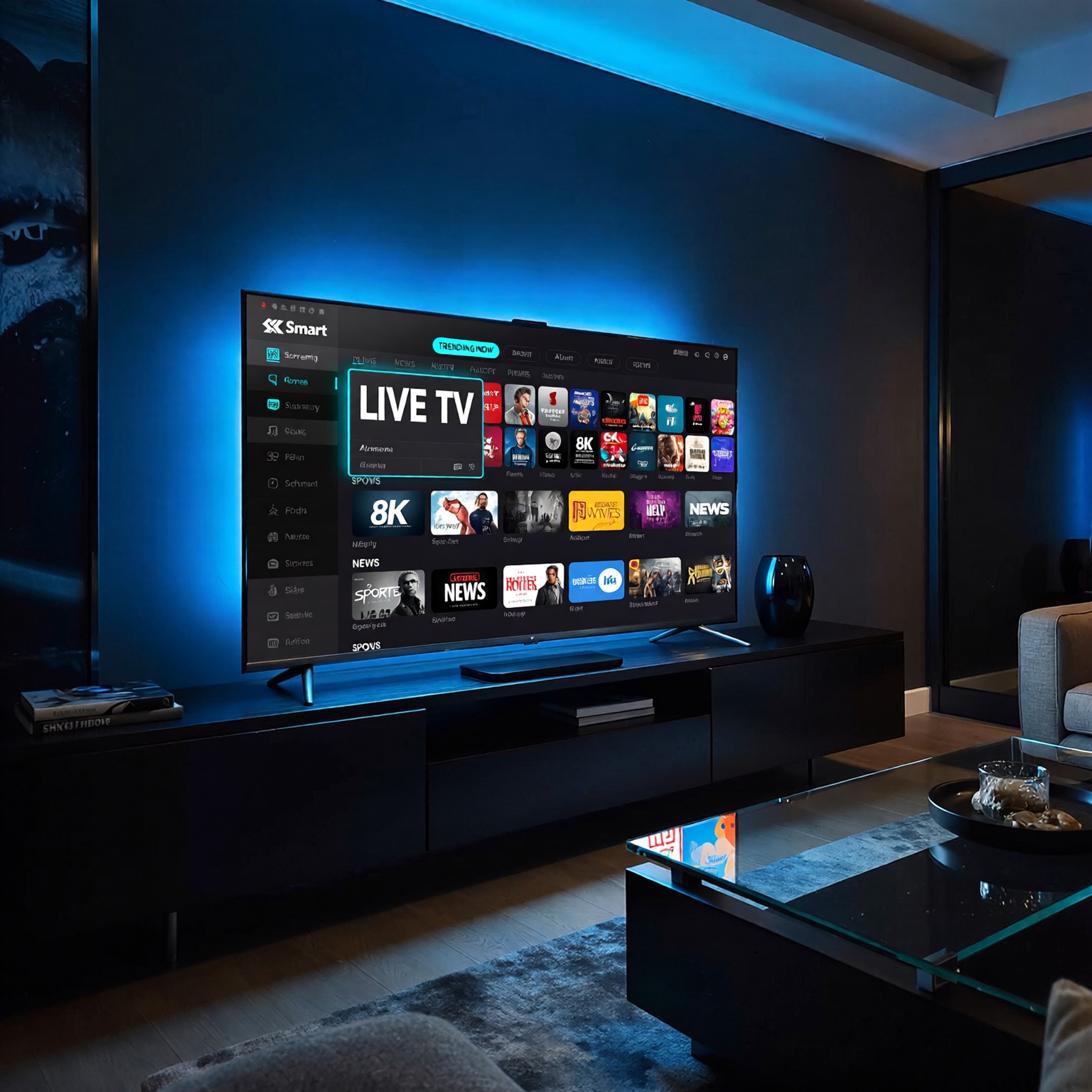
1. Check your Smart TV model and operating system
Start by finding the exact model number of your television. Samsung TVs may use Tizen, LG TVs use webOS, while Sony, TCL and other brands may use Android TV or Google TV. App availability changes by model year and region, so confirm the provider supports your exact TV before paying or activating anything.
If you are comparing providers, use our IPTV Subscription Dubai compatibility guide to check devices, account rules and activation steps.
2. Update the television before installing the app
Install pending TV firmware updates, restart the television and confirm the date, time and UAE region settings are correct. Older firmware can cause app-store errors, login problems and playback issues that look like a subscription fault.
3. Test the internet connection beside the TV
A speed test beside the router does not always show what the television receives. Test the connection near the TV, ideally during the evening when your household normally streams. Thick concrete walls, closed TV cabinets and crowded Wi-Fi channels can reduce stability.
For a deeper network check, read our internet speed for IPTV in Dubai guide.
4. Prefer Ethernet when practical
A wired Ethernet connection is usually the most predictable option for a fixed television. Strong 5 GHz Wi-Fi can also work well when the router or mesh node is close enough. Avoid placing the router behind the TV, inside a cabinet or beside equipment that creates interference.
5. Install only the authorised provider app
Use the official app store built into your television or supported streaming device. Check the developer name and avoid unknown APK files, unofficial download links or instructions that require disabling device security.
Our IPTV app compatibility guide for Dubai explains the main differences between Samsung, LG, Android TV and Apple TV.
6. Sign in with your own active account
Use the email address, activation code or account details issued directly by your provider. Never publish passwords or activation codes. If the provider supports multi-factor security or device-session controls, enable them.
7. Test picture, sound, subtitles and the remote
Once signed in, test several authorised streams, audio tracks, subtitles, the programme guide and parental controls. If the image is smooth but audio fails, check the TV sound output and HDMI settings before assuming the app is broken.
Common Smart TV setup problems
- App does not appear: check model year, TV region and provider compatibility.
- Login rejected: reset the account through the official provider.
- Playback buffers: test Ethernet, Wi-Fi signal and other streaming apps.
- Black screen: update the app and TV, then check HDMI or decoder settings where applicable.
- Remote not responding: replace batteries, pair the remote again and restart the TV.
For network and playback problems, see our IPTV Service Dubai troubleshooting guide and IPTV buffering fixes for Dubai homes.
Need installation help in Dubai?
Dubai Live TV can help prepare the television, connect Ethernet or Wi-Fi, update the device and install supported authorised apps using your existing account. You can also review our Smart TV installation Dubai service.